.png?width=243&name=Osmose-logo-(white).png "Osmose-logo")



PPL_Min API C# Examples
PPL_Min API
Introduction
The O-Calc Pro PPL_Min API is a lightweight, programmatic interface for building, editing, and exporting O‑Calc Pro pole models. It exposes a consistent element tree (groundline → pole → equipment/assemblies → conductors/spans) driven by a common schema, with methods to set parameters, position components (CoordinateX/A/Z), resolve geometry (ConstrainCoordinates), and serialize models into PPLX files (XML) for analysis or use in O‑Calc Pro. You can construct models from scratch with primitive elements (e.g., PPLWoodPole, PPLCrossArm, PPLInsulator, PPLSpan) or accelerate work by pulling pre‑defined elements/assemblies from a Catalog (.pplc) file using ReferenceCatalog, ensuring standardization and speed.
NOTE: The PPL_Min API is a cross-language API that enables the assembly of pole model via the same classes and functions. While the language choice (C#, VB.Net, Python, JavaScript, F#, etc.) mainly affects ecosystem conveniences, the same object model and schema are used, and the modeling logic is the same.
This WIKI post describes examples of the C# Implementation of this PPL_Min API.
Description:
The example builds a single pole model programmatically using the PPL_Lib. Below is a step-by-step description of the .cs file. At a high level, it creates a pole at groundlilne, adds environment variables (i.e. the LoadCase), adds a crossarm with insulators with two opposing spans each, and finally a anchor/down guy assembly. The code also applies the coordinate constraints recursively to make sure elements are consistent before saving.
The key takeaways from this example include the use of the scene tree pattern where every physical object is a PPLElement with children. Copying elements with the use of CopyElement() and CopySpan() to leverage quickly the replication of assemblies and elements with consistent properties. Coordinate manipulation with the use of CoordinateX() and CoordinateA() angles placement and direction of elements within the model. And finally, the Constrain function to ensure the final geometry is valid and stable prior to saving as a PPLX file.
- Initialize the API and Schema. Boots the PPL engine with your explicit API key and provides access to the O-Calc Pro Schema to instantiate elements with the PPLMain class.
- Create the root element “scene”. Establishes a scene object as the root in which all near-ground elements, such as the pole will be attached using the PPLGroundLine(). The scene element also holds attributes such as Latitude, Longitude, ElevationMetersAboveMSL.
- Create and add a wood pole. The PPLWoodPole() function adds a default ‘woodpole’ to the scene.
- Add the LoadCase to the Pole. The LoadCase is the environment variables (ex: wind/ice/temperatures) that will be used when the O-Calc Pro calculation engine is run. The PPLEnvironment() adds the LoadCase (loading conditions) to the pole as a child element.
- Add a Crossarm to the Pole. The PPLCrossarm element represents a crossarm and the instantiate ‘arm’ is added as a child to the parent ‘woodpole’.
- Create an insulator and two opposing spans. First instantiate a PPLInsulator called ‘ins’ and then add ‘span1’ as a child using PPLSpan. Add a second PPLSpan ‘span2’ but rotate it by π radians (flip 180 degress). Set the CoordinateX of the ‘ins’ to -40 inches and make it a child of the crossarm ‘arm’.
- Clone and distribute more insulators on the crossarm. Copies the initial insulator ‘ins’ (including its span children) using the CopyElement() function. Space each cloned insulator by 20 inches and add to the crossarm as a children.
- Add a guy anchor assembly. First create a PPLAnchor element ‘anch’ and then a PPLGuyBrace element added a child to the ‘anch’. Then add the ‘anch’ assembly to the ‘woodpole’ as child.
- Constrain coordinates recursively. Walks the entire scene tree and fixes each element’s coordinates so positions are locked and consistent.
- Save to a .pplx file. Serialize the built model into a PPLX file to your temp directory with the file name “PPL_Min_Test.pplx” using the SavePoleXmlToStream().
Description:
In Example 2, we build off Example 1 by replacing lines 30 and 31 of Example 1 with the following code snippet:
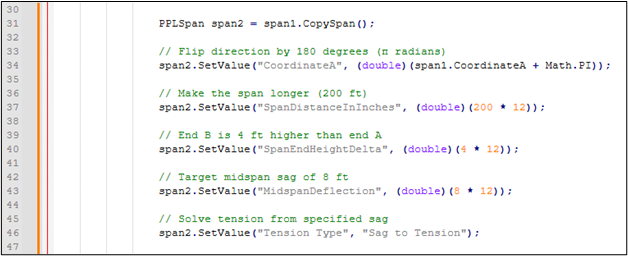
This example shows how to modify parameters using the SetValue() function instead of assigning properties directly. Once ‘span2’ is created by the CopySpan() function, the multiple SetValue() calls set individual attributes such as:
- “CoordinateA” (relative rotation), in this case the rotation is flipped 180 degrees relative to ‘span1’
- “SpanDistranceInInches” (span length from pole to pole), as the name implies, the stored attribute within the PPLX file is in inches.
- “SpanEndHeightDelta” (the change in elevation of the span at the other pole), again value is stored as inches and can be positive meaning the height is higher or negative when the other end is lower.
- “MidSpanDeflection” (the nominal sag of the span), this is the midspan sag of the span in inches. This value or “Tension” value commonly interacts with the tension calculations and depends on the select tension model. The nominal aspect means it is the sag at the Load Case’s nominal temperature value.
- “Tension Type” (the Sag/Tension type modeling used), the O-Calc Pro Tension/Sag Calculation Engine has different tension types (see Tension Types and Sag Explained – O-Calc Pro Wiki). In this example it is being set to “Sag to Tension”, hence the reason for also explicating setting the “MidSpanDeflection” value. If for example the Tension Type was set to “Tension to Sag”, then the attribute “Tension” would need to be properly set.
Key takeaways and tips for this example
- PPLElement attribute names are case/space sensitive and must match the schema (See O-Calc Pro Schema WIKI Post). If a name is off by even one character, the set may silently fail or throw, depending on implementation.
- Linear units within the PPLX file are stored in inches, so remember to multiply by 12 if your units are in feet. Angles within the PPLX file are stored as radians, which would need to be converted if your values are in degrees.
- Depending on the Tension Type being used, you will need to seed the proper attribute value with the proper nominal temperature value. Some Tension Type modes requirement a nominal “Tension” value set in pounds, while others required a mid-span nominal sag set using the “MidSpanDeflection” attribute value set.
- After setting parameters, the later Constrain(...) call (from Example 1) helps ensure the scene graph recomputes positions/solutions with the new inputs.
Copy elements and assemblies is very useful, however be away that because span2 starts as a copy of span1, it inherits conductor type, temperature, and other properties—then you override only what you need.
Description:
The Example 3 .cs file demonstrates building a pole model using catalog-defined components rather than instantiating default elements and hand-setting parameters. It first opens a reference catalog (MasterCatalog.pplc), then constructs a scene with a groundline, a catalog wood pole (e.g., “NESC Standard\Ponderosa Pine 45-4”), an environment/loadcase (e.g., “NESC 17 (250B) Grade C , Warm Island 9,000 ft. & Below (W:9psf)”), and a complete crossarm assembly (e.g., “Crossarm Assemblies\6' x 3.5" x 4.5" - 2 Pin”) using explicit catalog path\name entries. The crossarm is positioned by setting its CoordinateZ to the pole setting depth plus 32 ft (in inches), i.e., 32′ above groundline. After placing the elements, coordinates are constrained at the groundline, and the model is saved to a .pplx file.
Unlike Examples 1 and 2 (which built span/insulator structures programmatically and used SetValue to modify parameters), Example 3 leans on catalog definitions to bring in pre-configured components—complete with dimensions, materials, and properties defined in the catalog. This approach is closer to a standards-driven workflow: users pick from approved parts/assemblies, ensuring consistency and reducing manual parameter entry. It also shows a practical pattern for loading, searching, and cloning catalog items into the active model.
Key takeaways and tips for this example:
1) Loading and using a Reference Catalog
The ReferenceCatalog helper encapsulates loading a .pplc catalog file via PPLSerializer with LOADING mode and reconstructing a PPLCatalogFolder tree in memory:
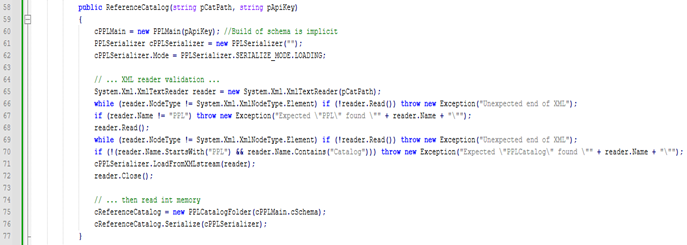
This differs from Examples 1 and 2, where elements were constructed directly with new and values were set via properties or SetValue. Here, items are sourced from a catalog that encodes standards and element attribute values.
2) Catalog search by path and cloning elements
- FindElementInCatalog(@"Path\To\Item") searches the tree using catalog display names and verified parent hierarchy. Key points:
- DisplayedName(PPLElement.DISPLAY_NAME_MODE.CATALOG) ensures the search uses catalog-facing names (not internal IDs).
- When a match is found, it returns elem.CopyElement()—so the active model gets a clone of the catalog item (not a shared instance).
- This pattern ensures that multiple uses of the same catalog part are safe to place and then individually positioned/tuned.
3) Catalog-driven pole, environment, and assemblies
Wood pole selection: You get a pole with catalog-defined class, dimensions, strength properties, etc., without manually setting those parameters. And then add as a child to the scene:

Environment (loadcase) selection: The environment encapsulates wind/ice/temp inputs aligned with a standard as specified within the MasterCatalog—again, avoiding ad-hoc SetValue calls.

Complete crossarm assembly: Obtain a pre-built assembly, typically including dimensions, pin count/spacing, materials, and potentially attached hardware specified by the catalog. Then position the crossarm on the pole relative to the pole’s setting depth. Recall units are in inches.
C#
PPLCrossArm arm = cCatalog.FindElementInCatalog(@"Crossarm Assemblies\6' x 3.5"" x 4.5"" - 2 Pin") as PPLCrossArm;
Show more lines
4) Placement using existing element attributes
- The crossarm is positioned relative to the pole’s setting depth:
- Unit discipline: distances are in inches.
- Relative placement: using a property (SettingDepth) from one element to place another—useful for consistent elevation logic.
C#
arm.CoordinateZ = woodPole.SettingDepth + 32 * 12; // 32 ft above groundline, inches units
Show more lines
This highlights two things not emphasized in Examples 1/2:
5) Constrain and save workflow variants
- Example 3 calls:
- Saving uses SavePoleXmlToStream(File.OpenWrite(fname), false); in production, wrapping the stream in a using is advisable to ensure proper disposal.
C#
cPPLMain.cCurrentGroundlineElement.ConstrainCoordinates(null);
Show more lines directly on the groundline (rather than recursing through a helper function). The effect is similar—solve/fix coordinates before serialization.
6) Error handling for catalog availability
- If the catalog path is invalid or the file isn’t a valid PPL Catalog, the constructor throws; Example 3 catches and logs the message, then exits gracefully—useful for environments where the catalog is optional or externally managed.
Why This Matters
- Consistency & Standards: Catalog-driven modeling ensures that parts and assemblies comply with your standards (dimensions, ratings, materials) out of the box.
- Productivity: You avoid repetitive parameter entry (SetValue) for common items, while still being able to adjust placement and select variants.
- Traceability: Using DisplayedName(...CATALOG) means your model references human-friendly, standards-based names, simplifying reviews and audits.